
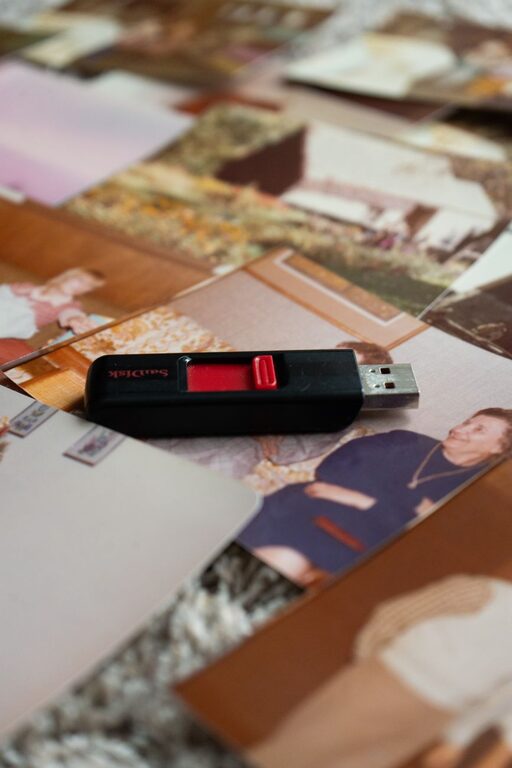
Digital photos make it easy to capture everyday moments, family celebrations, vacations, and special milestones. However, a growing camera roll can quickly become difficult to manage. Thousands of images may be spread across phones, computers, cloud services, memory cards, and messaging apps.
The good news is that organizing digital photos does not require complicated software or a perfect system. With a few consistent habits, you can create a photo library that is easier to search, safer to store, and more enjoyable to browse.
Start With a Simple Plan
Before moving or deleting anything, decide what you want your photo collection to do for you. Most people want to:
– Find important photos quickly
– Keep favorite memories safe
– Remove duplicates and unwanted images
– Create space on their devices
– Make photos easy to share and enjoy
Your system should be simple enough to maintain. A basic structure using dates, events, and regular backups is often more useful than a highly detailed system that takes too much time.
Choose one main location for your photo library. This could be a computer, an external drive, a trusted cloud service, or a combination of these options. You can still access photos on multiple devices, but having one organized master collection reduces confusion.
Gather Photos in One Place
The first step is to bring your photos together. Check all the places where images may be stored, including:
– Smartphones and tablets
– Computers and laptops
– External hard drives
– Memory cards
– Cloud storage accounts
– Social media downloads
– Messaging apps
– Old phones and cameras
Create a temporary folder called something like “Photos to Sort.” Copy images into this folder rather than moving them immediately. Copying gives you an extra layer of protection while you review everything.
If you have a large collection, work in sections. For example, begin with your phone, then move to your computer, followed by older storage devices. Sorting smaller groups makes the process feel more manageable and helps prevent mistakes.
Use Folders Based on Year and Event
A clear folder structure makes photos easier to browse. One reliable approach is to organize folders by year, then by month or event.
For example:
– 2024
– 2024 01 New Years Day
– 2024 06 Beach Trip
– 2024 12 Holiday Gathering
– 2025
– 2025 03 Birthday Weekend
– 2025 08 Family Reunion
Use a consistent naming style. Including the year first keeps folders in chronological order. Event names should be short but descriptive enough to recognize later.
You do not need a separate folder for every small occasion. A folder for “2025 04 Everyday Photos” may be enough for ordinary pictures, while important trips or celebrations can have their own folders.
Review Photos in Several Passes
Trying to make every decision at once can become tiring. Instead, review your collection in several passes.
First Pass: Remove Obvious Clutter
Delete images that clearly have no value, such as:
– Blurry photos
– Accidental shots of the floor or ceiling
– Duplicate screenshots
– Photos of receipts you no longer need
– Repeated images from the same moment
– Unwanted downloads and memes
Do not spend too much time comparing similar photos during this first pass. The goal is simply to remove the easiest items.
Second Pass: Choose the Best Version
When you have several similar photos, keep the one that best captures the moment. Look for sharp focus, natural expressions, good lighting, and a clear view of the subject.
For group photos, compare faces and expressions. For scenery, choose the image with the strongest composition. If two photos tell different parts of the same story, keep both. Otherwise, one strong image is usually enough.
Third Pass: Mark Your Favorites
Use your photo app’s favorite or star feature to highlight the images you value most. Favorites might include:
– Important family moments
– Photos of people you love
– Travel highlights
– Meaningful everyday moments
– Images you want to print or share
This creates a smaller collection inside your larger library. You can browse your favorite memories without searching through every photo.
Rename Files Only When It Helps
Many photos have automatic names such as “IMG_4821” or “DSC_1098.” Renaming every file is not necessary, especially if your photo app already recognizes dates and locations.
However, renaming can be useful for important collections, printed projects, or photos stored outside a photo app. A practical format might be:
`2025 08 Family Reunion 01`
Avoid using symbols that may not work well across different devices. Simple letters, numbers, spaces, and hyphens are usually safe.
If you rename files, keep the original date information when possible. Dates are often more useful than creative names when searching for older photos.
Add Helpful Details
Photo apps often organize images by date, location, faces, and visual content. You can improve search results by adding basic information to important photos.
Useful details may include:
– Event name
– Location
– Names of people
– Short description
– Photographer or source
You do not need to add information to every image. Focus on special photos that may become harder to identify over time. A photo of a family gathering is more meaningful when future viewers know who is pictured and where the event took place.
For older scanned photos, add the approximate year if the exact date is unknown. Even a note such as “About 1985” can make the image easier to understand.
Create a Reliable Backup System
Organization helps you find photos, but backups help you keep them. A device can be lost, damaged, or affected by a storage failure, so do not rely on a single copy.
Keep at least two copies of important photos in different locations. For example:
– One copy on your computer
– One copy on an external drive
– One copy in cloud storage
An external drive should not remain connected all the time if it is being used as a backup. Disconnecting it after a backup can help protect it from accidental deletion or certain computer problems.
Check your backups periodically. Open a few files to confirm that they work, and make sure recent photos are included. A backup that has not been updated may not contain your latest memories.
Keep Your Phone Organized
Your phone is often the main source of new photos, so create a small routine for it. Once a week or once a month, review recent images and remove clutter.
Pay special attention to:
– Screenshots
– Duplicate downloads
– Images from group chats
– Temporary reference photos
– Poor-quality pictures
– Photos already stored elsewhere
Turn on automatic photo backup if it fits your needs, but remember that syncing is not always the same as a separate backup. Some services mirror changes, so deleting a photo on one device may remove it from connected devices. Learn how your chosen service handles deleted files and storage limits.
Schedule Short Maintenance Sessions
Photo organization is easier when it becomes a regular habit. Set aside 10 to 20 minutes each week or month to review new images.
A simple maintenance routine might include:
- Import new photos.
- Delete obvious clutter.
- Select the best versions.
- Add important photos to favorites.
- Place images in the correct folder.
- Confirm that your backup is current.
Short sessions prevent the collection from becoming overwhelming again. You do not need to organize everything perfectly. Consistency matters more than speed.
Enjoy the Collection You Created
The purpose of organizing photos is not just to create tidy folders. It is to make your memories easier to enjoy. Use your organized collection to create photo books, framed prints, slideshows, shared albums, or yearly highlights.
Consider creating a “Best of the Year” folder with a small selection of favorite images. This gives you a simple way to revisit meaningful moments without sorting through your entire library.
A good photo system should protect your memories while keeping them accessible. Start with one device, use a clear folder structure, remove clutter gradually, and maintain more than one backup. With these habits, your digital photos can remain easy to find and enjoyable for years to come.
About the Author