
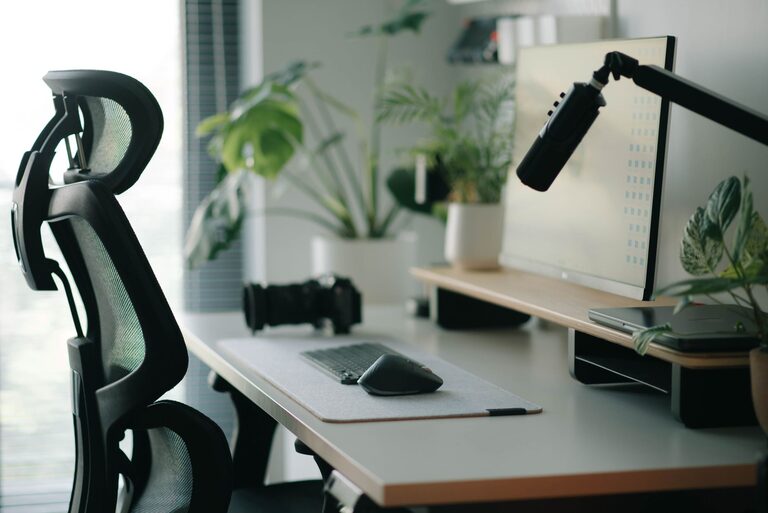
A comfortable workspace can make computer tasks easier, more organized, and more enjoyable. Whether you work from home, study, manage personal projects, or spend a few hours online each day, small improvements can make a noticeable difference.
The best workspace is not necessarily the most expensive one. It is a space arranged around your needs, available room, and daily routine. Start with the basics: a suitable chair, a stable desk, a well-positioned screen, comfortable lighting, and enough space to move naturally.
Choose the Right Location
Begin by selecting a place that supports focus and allows you to work without unnecessary interruptions. A quiet corner, spare room, or section of a shared room can work well.
Consider these points when choosing a location:
– Place the workspace near a power outlet.
– Avoid areas with strong glare from windows or overhead lights.
– Leave enough room to move your chair in and out.
– Keep frequently used items within easy reach.
– Choose a location with reliable internet access if needed.
– Separate work equipment from areas used for meals or relaxation when possible.
Natural light can make a workspace feel more pleasant, but direct sunlight may create glare on the screen. Position the desk so that windows are beside you rather than directly in front of or behind the monitor. Curtains or blinds can help you control brightness throughout the day.
Select a Desk That Fits Your Work
Your desk should provide enough space for your monitor, keyboard, mouse, documents, and other essential items. A desk that is too small can feel crowded, while an oversized desk may encourage clutter.
Before choosing a desk, measure the available area and consider the equipment you use. A laptop may need less space than a desktop computer with multiple monitors. You may also need room for notebooks, speakers, a desk lamp, or creative tools.
Look for a desk with:
– A stable surface that does not wobble
– Enough legroom
– A comfortable working height
– Space for cable management
– Easy-to-clean materials
– Drawers or shelves if storage is important
Keep the main work area clear. Items you use every day should stay nearby, while rarely used supplies can be stored in a drawer, cabinet, or box.
Set Up Your Chair
A chair should support an upright, relaxed sitting position. It should also allow you to adjust your height so that your arms and hands can reach the desk comfortably.
When sitting, aim to keep your feet flat on the floor or supported by a footrest. Your knees should be positioned comfortably, and you should have enough space between the back of your legs and the front edge of the seat.
Useful chair features include:
– Adjustable seat height
– A supportive backrest
– Comfortable, breathable material
– Stable wheels or legs
– Armrests that can be moved out of the way
– A seat that allows natural movement
Do not rely on the chair alone. Adjust the desk, monitor, and accessories as well so that everything works together. If a chair has many settings, change one feature at a time and test the arrangement during normal computer tasks.
Position the Monitor Correctly
Monitor placement has a major effect on comfort and concentration. Place the screen directly in front of you so that you do not need to turn your head repeatedly. If you use two monitors, place the main screen in the center and position the second screen beside it.
The top portion of the screen should be around eye level or slightly below it. The screen should be far enough away for you to read without leaning forward. If text looks too small, increase the display scaling or font size instead of moving closer.
To reduce glare:
– Keep the monitor away from direct sunlight.
– Adjust the screen angle slightly if reflections appear.
– Clean the screen regularly.
– Use a matte screen protector if appropriate.
– Change brightness to match the room.
The brightest possible screen is not always the most comfortable. Aim for a display that is clear without appearing harsh compared with the surrounding space.
Arrange the Keyboard and Mouse
Keep the keyboard and mouse close enough that you do not need to reach forward. Your shoulders should remain relaxed, and your elbows should stay near your sides while you work.
Place the keyboard so that your wrists can remain in a natural, comfortable position. A keyboard tray, a low-profile keyboard, or a simple change in desk height may help create a better arrangement.
The mouse should sit beside the keyboard and move smoothly across the desk. If you use the mouse frequently, choose a size and shape that feels easy to control. A mouse pad can improve movement and protect the desk surface.
For laptop users, a separate keyboard and mouse can be useful when the laptop is raised to a more comfortable screen height. This allows the display and input devices to be positioned separately.
Improve Lighting
Good lighting helps you read documents, see your keyboard, and work without unnecessary screen reflections. Use a combination of natural and artificial light when possible.
A desk lamp can provide focused light for reading or writing. Position it so that it does not shine directly into your eyes or reflect off the monitor. If you write with your right hand, placing the lamp on the opposite side may help reduce shadows. Reverse this arrangement if you write with your left hand.
Keep the room lighting consistent with the screen brightness. A very bright monitor in a dark room can feel distracting, while a dim screen in a bright room may be difficult to read.
Manage Cables and Equipment
Cable clutter can make a workspace look untidy and may limit how you arrange your equipment. Group cables by device and secure them with reusable ties, clips, or sleeves.
Labeling cables can make future changes easier. You can also attach a small label to each power adapter so you know which device it belongs to.
Try these simple cable management steps:
- Place the computer or power strip where it is easy to access.
- Separate power cables from frequently moved accessories.
- Route cables along the back or underside of the desk.
- Leave enough slack for cleaning and equipment changes.
- Store unused cables in a labeled container.
Avoid creating tight bends or placing cables where they can be caught by chair wheels.
Keep the Workspace Organized
A clean workspace can make it easier to begin tasks and find what you need. At the end of each work session, take a few minutes to return items to their usual locations.
Use trays, small containers, shelves, or drawer dividers to organize supplies. Keep only essential items on the desk and store backup materials elsewhere. Digital organization matters too, so create clear folders for documents and remove files you no longer need.
A simple daily reset can include:
– Clearing cups, wrappers, and unrelated items
– Returning notebooks and supplies
– Checking that cables are in place
– Wiping the desk and screen
– Preparing the first task for the next session
Build Comfortable Work Habits
Even a well-arranged workspace benefits from regular changes in position. Avoid staying in one posture for long periods. Stand up, walk around, stretch gently, or switch tasks from time to time.
Use reminders if you often lose track of time. A short break can be a chance to refill water, look away from the screen, or open a window. You can also vary your work by standing for a phone call, reading printed material, or organizing files away from the desk.
Pay attention to how your setup feels during ordinary tasks. If you frequently lean forward, reach for equipment, or turn your head, adjust the arrangement rather than simply trying to ignore the discomfort.
Review Your Setup Regularly
Your workspace may need to change as your equipment, schedule, or responsibilities change. Review the setup every few months and ask whether the desk still provides enough room, whether the screen is easy to read, and whether frequently used items are within reach.
Comfortable computer work comes from several small choices working together. With a suitable layout, clear lighting, organized equipment, and regular movement, you can create a workspace that supports productive and enjoyable computer use.
About the Author