
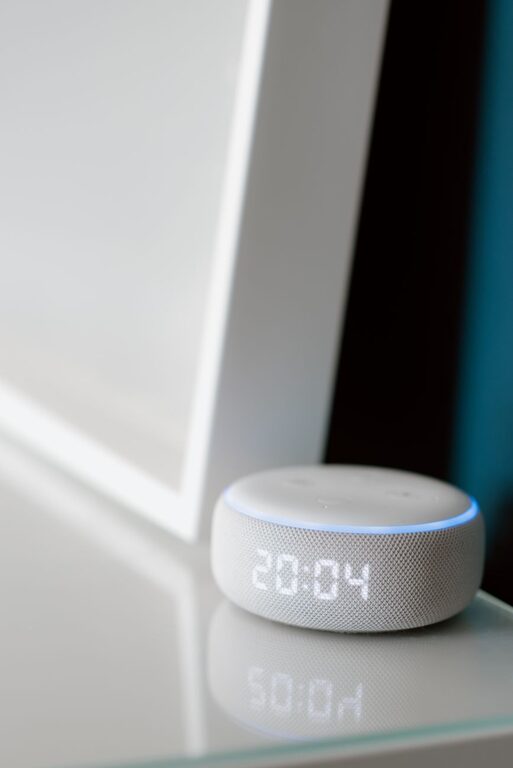
Voice assistants can make everyday tasks easier by turning spoken instructions into reminders, timers, and shopping lists. Instead of stopping what you are doing to type on a phone, you can speak a short command and continue with your task.
Whether you use a smart speaker, smartphone, smartwatch, or car system, the basic process is similar. You activate the assistant, say what you need, and check that it understood you correctly. With a few habits, voice commands can become a useful part of your daily routine.
Getting Started With a Voice Assistant
Before using voice commands, make sure your assistant is set up and connected to the correct account. Most devices require a companion app where you can choose settings, manage lists, and review reminders.
Check These Basic Settings
– Confirm that the assistant recognizes your voice.
– Review the time zone and location settings.
– Choose which device should receive reminders.
– Make sure the assistant has permission to send notifications.
– Connect shopping lists to the app or service you prefer.
– Learn the assistant’s wake word or activation method.
It is also helpful to use clear, complete sentences. For example, say “Remind me to take the chicken out of the freezer at 4 p.m.” rather than simply saying “Chicken.” Specific wording reduces confusion and makes the reminder more useful.
Creating Useful Reminders
Reminders are helpful for tasks that need to happen at a particular time, date, or place. You can create them while cooking, working, driving, or preparing for the day.
Time Based Reminders
A time-based reminder includes a task and a specific time. Try commands such as:
– “Remind me to call Sam at 3 p.m.”
– “Remind me to put the recycling out at 7 tonight.”
– “Remind me to check the oven in 20 minutes.”
– “Remind me about the appointment tomorrow at 9 a.m.”
Include the date when a task is not for today. Saying “Remind me to renew the library books on June 15” is clearer than saying “Remind me next month.”
Recurring Reminders
For tasks that repeat, ask the assistant to create a recurring reminder. Examples include:
– “Remind me every Monday to take out the trash.”
– “Remind me on the first day of every month to check the air filters.”
– “Remind me every weekday at 8 a.m. to review my schedule.”
Recurring reminders are useful for household routines, school activities, work tasks, and regular errands. Review them occasionally so old or unnecessary reminders do not build up.
Location Based Reminders
Some assistants can remind you when you arrive at or leave a particular place. These commands may depend on your device and location permissions. You might say:
– “Remind me to pick up the dry cleaning when I leave work.”
– “Remind me to ask about the paint when I arrive at the hardware store.”
Location reminders work best when the place is saved clearly in your contacts or map settings. If the assistant does not support location-based reminders, you can create a time-based reminder instead.
Using Voice Assistants as Timers
Timers are useful when you need to track a short period without watching a clock. They are especially convenient while cooking, cleaning, exercising, studying, or managing household tasks.
Set a Timer
Use a direct command that includes the length of time:
– “Set a timer for 10 minutes.”
– “Set a 45-minute timer.”
– “Start a two-hour timer called laundry.”
Some assistants let you give timers names. Named timers are helpful when you are running several at once. For example, you could say “Set a timer for 12 minutes called pasta” and “Set another timer for 5 minutes called tea.”
Manage Multiple Timers
When several timers are active, ask the assistant to list them or check a specific one:
– “How much time is left on the pasta timer?”
– “What timers are running?”
– “Cancel the tea timer.”
– “Add five minutes to the laundry timer.”
If your assistant does not understand a named timer, use a simple description such as “the 12-minute timer.” For important tasks, confirm the timer has started by asking, “How much time is left?”
Use Alarms for Fixed Times
Timers count down from a set duration, while alarms ring at a particular time. Use an alarm when you need to wake up or receive a notification at a specific hour:
– “Set an alarm for 6:30 a.m.”
– “Set an alarm for 8 p.m. called leave for practice.”
– “Cancel my 6:30 alarm.”
Building and Managing Shopping Lists
A voice assistant can keep a shopping list while your hands are busy or when you notice that an item is running low. You can add products immediately rather than trying to remember them later.
Add Items Quickly
Use commands such as:
– “Add milk to my shopping list.”
– “Put paper towels on the grocery list.”
– “Add apples, rice, and soap to my shopping list.”
If you frequently use more than one list, name the list directly. For example, say “Add light bulbs to my home supplies list.” This helps separate grocery items from household purchases, gift ideas, or project materials.
Review the List Before Shopping
Before leaving, ask the assistant to read the list aloud or open it in the companion app. Reviewing the list can help you catch missing details, such as the quantity or type of an item.
You can also organize the list while speaking:
– “Remove cereal from my shopping list.”
– “Change the list item from apples to green apples.”
– “Clear the grocery list.”
– “What is on my shopping list?”
Some shopping list apps group items by category automatically. If yours does not, include helpful details when adding an item, such as “two cans of black beans” or “one roll of aluminum foil.”
Improving Accuracy
Voice assistants are convenient, but they may occasionally misunderstand a word, name, or quantity. A few simple habits can improve results.
Speak Clearly and Naturally
Use a moderate pace and avoid giving too many instructions at once. Instead of saying, “Remind me tomorrow to buy milk and call Alex and clean the garage,” create separate reminders. This makes each task easier to review.
Confirm Important Details
After creating a reminder, ask the assistant to list your reminders or check the date and time. This is especially useful for names, dates, addresses, and similar-sounding words.
Use Consistent Phrases
Using the same wording for common tasks can make voice commands easier to remember. For example, always begin with “Add to my shopping list” or “Remind me to.” Consistent phrases also make it easier to notice when the assistant responds incorrectly.
Privacy and Shared Devices
Voice assistants may be used in shared spaces, so consider what information you place in reminders and lists. Avoid including sensitive details in a reminder that could be heard by other people. Use general wording when possible, and review privacy settings in the assistant’s app.
If several people use the same device, create separate profiles when available. This can help keep personal reminders and lists associated with the correct account. You should also review old reminders and shopping lists regularly.
A Simple Daily Routine
You can make voice commands part of a regular routine:
- Add household items to your shopping list as soon as you notice they are needed.
- Set timers for cooking, cleaning, and focused work sessions.
- Create reminders for tasks tied to a time or location.
- Review your reminders each morning.
- Check and organize your shopping list before going to the store.
- Remove completed or outdated items.
Voice assistants are most useful when commands are specific, lists are kept organized, and reminders are reviewed regularly. Start with one feature, such as shopping lists, then add timers and recurring reminders as they become part of your routine.
About the Author